Share this

Bar chart race

Sebastian Wedzel Avatar

by

5 minutes read

Bar chart race

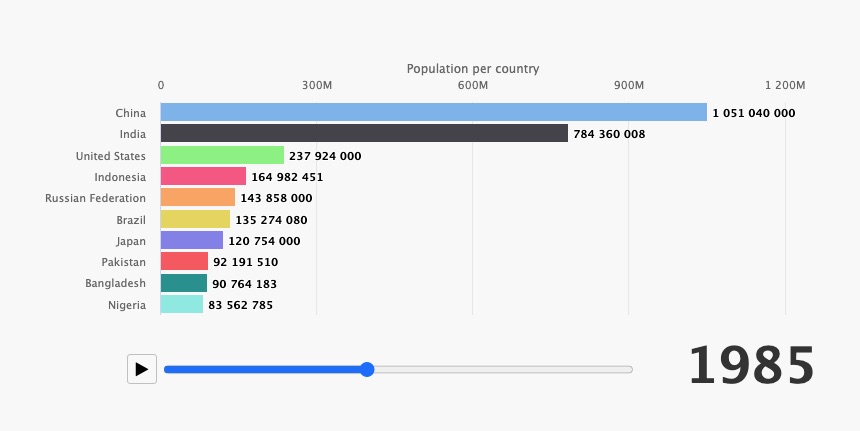
Have you heard of a Bar Chart Race? No? Well, it’s not a board game for data scientists, but, actually, a useful way to display time series in a bar chart format via animation.

Here is an example, and below we’ll show how to create this chart.

Creating a bar chart race with Highcharts library is easy and straightforward, thanks to the dataSorting feature. And in this tutorial, we will show you how to create a world population bar chart race.

Let’s get started!

The data used in this tutorial is the world population from 1960 to 2018. Here is the link to the data used in this demo. Now, we have the data; let’s make a function that processes the data for a particular year.

/**
 * Calculate the data output
 */
function getData(year) {

  let output = initialData.map(data => {
    return [data["Country Name"], data[year]]
  }).sort((a, b) => b[1] - a[1]);

  return ([output[0], output.slice(1, 11)]);
}

The first result is in this demo that shows the data related to the year 1960:

The next step is to add animation to the chart. To achieve this we need to add the following HTML elements: play/stop button and the <input> element with type=”range” for the interactive progress-bar. We have also to add the styling effect! (see CSS below):

@import "https://maxcdn.bootstrapcdn.com/font-awesome/4.3.0/css/font-awesome.min.css";

#parentContainer {
  min-width: 400px;
  max-width: 800px;
}

#play-controls {
  position: absolute;
  left: 100px;
  top: 350px;
}

#play-pause-button {
  width: 30px;
  height: 30px;
  cursor: pointer;
  border: 1px solid silver;
  border-radius: 3px;
  background: #f8f8f8;
}

#play-range {
  transform: translateY(2.5px);
}

We will add this the function to fit the range width after the window resize:

 events: {
   render() {
     let chart = this;

     // Responsive input
     input.style.width = chart.plotWidth - chart.legend.legendWidth + 'px'
   }
 },

The result of the previous changes are in this demo:

So far, we have a button and a range bar element, let’s create the function of the button to update the chart using the series.update feature:

/**
 * Update the chart. This happens either on updating (moving) the range input,
 * or from a timer when the timeline is playing.
 */
function update(increment) {
  if (increment) {
    input.value = parseInt(input.value) + increment;
  }
  if (input.value >= endYear) { // Auto-pause
    pause(btn);
  }

  chart.update({
    title: {
      useHTML: true,
      text: `<div>World population - overall: <b>${getData(input.value)[0][1]}<b></span></div>`
    },
  }, false, false, false)

  chart.series[0].update({
    name: input.value,
    data: getData(input.value)[1]
  })
}

And here, we link the function above to the button elements:

/**
 * Play the timeline.
 */
function play(button) {
  button.title = 'pause';
  button.className = 'fa fa-pause';
  chart.sequenceTimer = setInterval(function() {
    update(1);
  }, 500);
}

/** 
 * Pause the timeline, either when the range is ended, or when clicking the pause button.
 * Pausing stops the timer and resets the button to play mode.
 */
function pause(button) {
  button.title = 'play';
  button.className = 'fa fa-play';
  clearTimeout(chart.sequenceTimer);
  chart.sequenceTimer = undefined;
}

btn.addEventListener('click', function() {
  if (chart.sequenceTimer) {
    pause(this)
  } else {
    play(this)
  }
})

/** 
 * Trigger the update on the range bar click.
 */
input.addEventListener('click', function() {
  update()
})

Now, we have a fully worked race bar chart:

As a final step, we can attach a custom functionality to tweak the data-labels changing effect:

/**
 * Animate dataLabels functionality
 */
(function(H) {
  const FLOAT = /^-?\d+\.?\d*$/;
  // Add animated textSetter, just like fill/strokeSetters
  H.Fx.prototype.textSetter = function(proceed) {
    var startValue = this.start.replace(/ /g, ''),
      endValue = this.end.replace(/ /g, ''),
      currentValue = this.end.replace(/ /g, '');
    if ((startValue || '').match(FLOAT)) {
      startValue = parseInt(startValue, 10);
      endValue = parseInt(endValue, 10);

      // No support for float
      currentValue = Highcharts.numberFormat(
        Math.round(startValue + (endValue - startValue) * this.pos), 0);
    }
    this.elem.endText = this.end;
    this.elem.attr(
      this.prop,
      currentValue,
      null,
      true
    );
  };

  // Add textGetter, not supported at all at this moment:
  H.SVGElement.prototype.textGetter = function(hash, elem) {
    var ct = this.text.element.textContent || '';
    return this.endText ? this.endText : ct.substring(0, ct.length / 2);
  }

  // Temporary change label.attr() with label.animate():
  // In core it's simple change attr(...) => animate(...) for text prop
  H.wrap(H.Series.prototype, 'drawDataLabels', function(proceed) {
    var ret,
      attr = H.SVGElement.prototype.attr,
      chart = this.chart;

    if (chart.sequenceTimer) {
      this.points.forEach(
        point => (point.dataLabels || []).forEach(
          label => label.attr = function(hash, val) {
            if (hash && hash.text !== undefined) {
              var text = hash.text;
              delete hash.text;
              this.attr(hash);
              this.animate({
                text: text
              });
              return this;
            } else {
              return attr.apply(this, arguments);
            }
          }
        )
      );
    }
    ret = proceed.apply(this, Array.prototype.slice.call(arguments, 1));
    this.points.forEach(
      p => (p.dataLabels || []).forEach(d => d.attr = attr)
    );
    return ret;
  });
})(Highcharts);

The final result is in the demo below:

As we promised, it is easy and straightforward to create a bar chart race with Highcharts.

Stay in touch

No spam, just good stuff

We're on discord. Join us for challenges, fun and whatever else we can think of
XSo MeXSo Me Dark
Linkedin So MeLinkedin So Me Dark
Facebook So MeFacebook So Me Dark
Github So MeGithub So Me Dark
Youtube So MeYoutube So Me Dark
Instagram So MeInstagram So Me Dark
Stackoverflow So MeStackoverflow So Me Dark
Discord So MeDiscord So Me Dark

Comments

  1. Ignacio

    |

    I have found some issues that I think are misleading in this tutorial:

    The charts shown are mixed up: the first one found after the “Let’s get started!” sentence already contains a Play button and a range input although it is supposed to be included in the next step. The same happens in the next chart, that already contains the Play button update functionality that comes in the next code snippet. This same chart is then repeated after the “we have a fully worked race bar chart”. I don’t know which but one of them is not needed and should be removed for the charts to correspond with the text and code being shown.

    – In the JSFiddle snippets the data series being fed to chart are already sorted by population, so the dataSorting feature becomes redundant: you can set the enabled attribute to false and the chart behaves (apparently, I haven’t check every frame) the same. I don’t know if it would end up being more distracting but one solution I came up with is to add .sort() to the country array (output.slice(1, 11)) in the return of getData(), so that it is sorted by alphabetical order unless the dataSorting feature is working.

    Please correct these issues because they harm the understanding of an otherwise interesting tutorial for a useful chart type


  2. Sebastian Wędzel

    |

    Hey Ignacio,

    Thanks for your opinion.

    – I totally agree with the first one – some mistakes have been done with the order of the demos while writing this article – it is reported and will be fixed soon,

    – `In the JSFiddle snippets the data series being fed to chart are already sorted by population, so the dataSorting feature becomes redundant` – here I don’t agree – notice that the dataSoritng is a feature responsible for the animated switching columns while the order of the points is changing, when is disabled the columns don’t change their position with animation,


  3. Libor Subcik

    |

    Hello,
    this is cool. I would like to ask if this is possible to easily achieve also with stacked bars? I was not able to do this, maybe i do not understand the datasorting attribute right, it looks like it is for series but when I use series for stacking, i also need datasorting for categories?


    1. Sebastian Wędzel

      |

      I cannot see any counter-indications to use this feature also with the stacked columns. Take a look at this demo basic demo which you can start to implement: https://jsfiddle.net/BlackLabel/r2y8cLf9/

      In case of any troubles with implementing it, I encourage you to contact our support team with the code example where the issue is, on one of the available channels. https://www.highcharts.com/blog/support/


  4. Miro Liska

    |

    Hello

    None of the charts in this blog work for me. Tested in Edge Chromium and Firefox, both in this page and also in JSFiddle.


    1. Mustapha Mekhatria

      |

      Thx Miro, there was an issue with the link to the data. Now, all demos are working.


  5. John Armstrong

    |

    Hi,

    I’ve copied the code exactly as it is shown in the final result demo but the animation does not work. Am I missing something? It works on https://codepen.io/mushigh/pen/eYvdKaL but doesn’t work when I put it in webStorm.

    Kind Regards.
    – John.


    1. Mustapha Mekhatria

      |

      Hi,
      Please, get in touch with your support: https://www.highcharts.com/support/


  6. Michele

    |

    Great tutorial, thank you!
    How can I show 20 countries instead of 10?
    And is it possible to slow down the animation?
    Thank you in advance


    1. Mustapha Mekhatria

      |

      Hi,
      Use the number (nbr=20) you want in this section
      return ([output[0], output.slice(1, nbr)]);
      However, be sure to update the height of the chart accordingly
      #container {
      height: 900px;
      }
      Link to the demo https://codepen.io/mushigh/pen/mdWrKrZ


  7. Matt H

    |

    This demo is great. The only thing that doesn’t seem right are the data labels because they don’t align with the labels on the axis which indicates the World Population.
    Here’s an example for China in 1962:
    – the width of the bar chart shows a value between 600M and 800M
    – the tooltip when hovering over the bar is correct also
    – if I click on the play button to start the race, the data label shows 161 billion which does not match the width of the bar chart
    – it does work correctly, though, if I click on the individual years on the range input. The data label is then updated to the correct value, 665 million

    I noticed this in an example that I created myself: the data label is correct as long as the value is below 10. If it is above 10, it adds 8 for every full decade. Example: If the value is 25, it adds 16 (which is 8 multiplied by 2 which is the number of 10s which goes into 25).

    Is there a way to avoid the data labels from being changed when the animation is running?


    1. Mustapha Mekhatria

      |

      Hi,
      Thank you for the good inputs. It looks like the plugin to animate dataLabels’ text is broken. We will fix it 🙂


  8. Juru

    |

    There is an error with the numbers displayed when you hit Play.
    If you hit Play and stop (for example on the year 1964) you will see the population of China 165 642 440 000.
    If you drag the slider to the same year (1964) you will get the correct numbers for the series 698 355 000.


    1. Juru

      |

      I have solved the issue by removing the part
      ————
      if (hash && hash.text !== undefined) {
      var text = hash.text;

      delete hash.text;

      this.attr(hash);

      this.animate({
      text: text
      });
      return this;
      } else {
      ——–
      Basically it will remain:

      if (chart.sequenceTimer) {
      this.points.forEach(
      point => (point.dataLabels || []).forEach(
      label => label.attr = function(hash, val) {

      return attr.apply(this, arguments);

      }
      )
      );
      }


      1. Mustapha Mekhatria

        |

        Hi,
        You are right, there is an error. And a big thanks to solve it as well 🙂


        1. Felippe

          |

          Hi, first thanks for this. It is great!
          One question:
          when a value leaves the top 20, its bar disappears from the chart. The animation shows the bar “leaving” the chart from the bottom.
          in my chart, i’m using the lowest 20 values, instead of highest (they are negative). I adjusted the axis so the lowest values are shown at the top. But now, when a bar leaves the bottom 20, the bar disappears from the top (since i reversed the axis). Is it possible to make it dissapear from the bottom (where the higher values are)?


          1. Mustapha Mekhatria

            |

            Hi,
            Here is a demo for you: https://jsfiddle.net/BlackLabel/8v56zfmc/


        2. Kai

          |

          Hi Mustapha,
          really nice demo and use case 😉 One question: how can we make sure the race controls (play/pause button and progress bar) are also visible and usable in highcharts fullscreen mode? I guess, we somehow need to bring the markup to the chart itself??


          1. Mustapha Mekhatria

            |

            Hi Kai,
            To ensure that the race controls (like the play/pause button and progress bar) are visible and usable in Highcharts fullscreen mode, you will indeed need to bring these controls into the chart container itself.


Leave a Reply to Felippe Cancel reply

Your email address will not be published. Required fields are marked *

This site uses Akismet to reduce spam. Learn how your comment data is processed.