
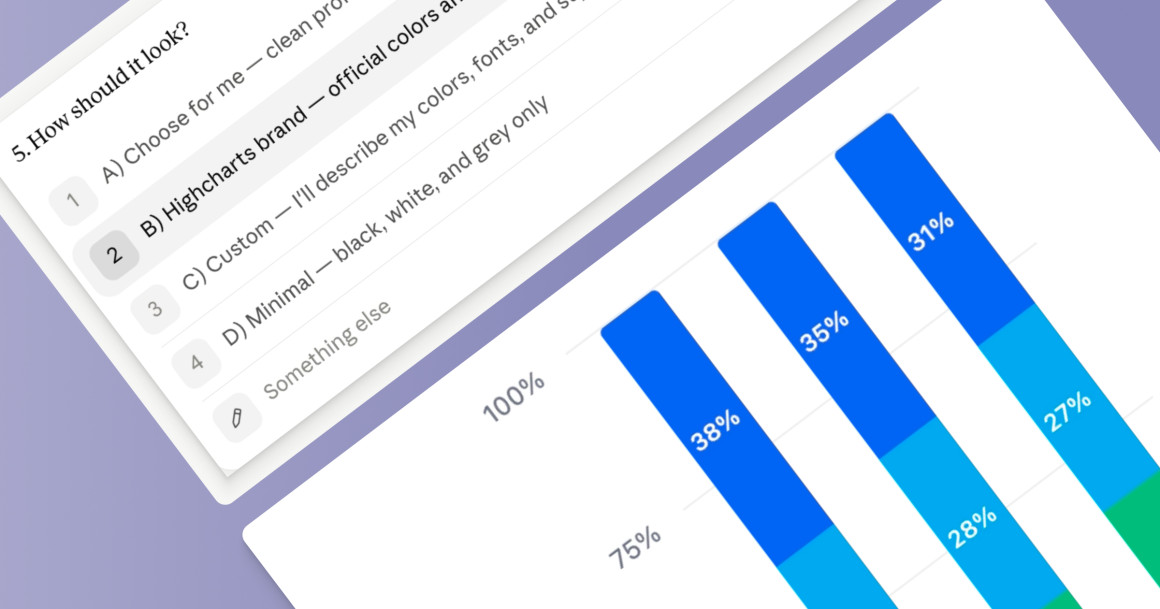
Highcharts Chartchooser MCP brings Highcharts directly into your AI assistant. Copy/paste your data, click through a few guided questions, and get an HTML production-ready Highcharts visualization in a few minutes.
Here is what it looks like in practice.
Why Chartchooser MCP
- Works inside tools you already use: connect it to Claude.ai or Claude Desktop.
- No Highcharts API knowledge needed: Chartchooser handles chart selection and configuration for you, based on your data and your goal.
- Guided discovery, not guesswork: instead of requiring a perfect prompt, it asks you the right questions and builds the chart from your answers.
- Production-ready HTML output: what you get at the end isn’t a screenshot or a mockup. It’s a complete, renderable Highcharts HTML file ready to use.
How to connect
Chartchooser MCP is hosted and ready to use, no setup on your end beyond adding the connector.
Remark
For now, Charchooser MCP is supported only on claude.ai and claude desktop
Claude.ai
- Go to Settings → Integrations
- Click Add integration
- Enter the URL: https://chartchooser-mcp.highcharts.ai/mcp
- Follow the OAuth prompt to authenticate
- Chartchooser MCP will appear in your connected tools
Your first chart
Once connected, start a new conversation and trigger the Chartchooser flow. In Claude.ai, try this prompt:
“I want to create a chart, use elicitation UI : [paste your data here]”
Chartchooser will walk you through five short discovery questions:
- What do you want to build?
- What is your goal?
- What is your audience?
- How should it open?
- How would you like it styled?
The elicitation UI lets you click through the questions instead of typing your answers. At the end, you will have a production-ready Highcharts HTML file.
Feel free to try it and share your experience, comments, or questions.






Leave a Reply