
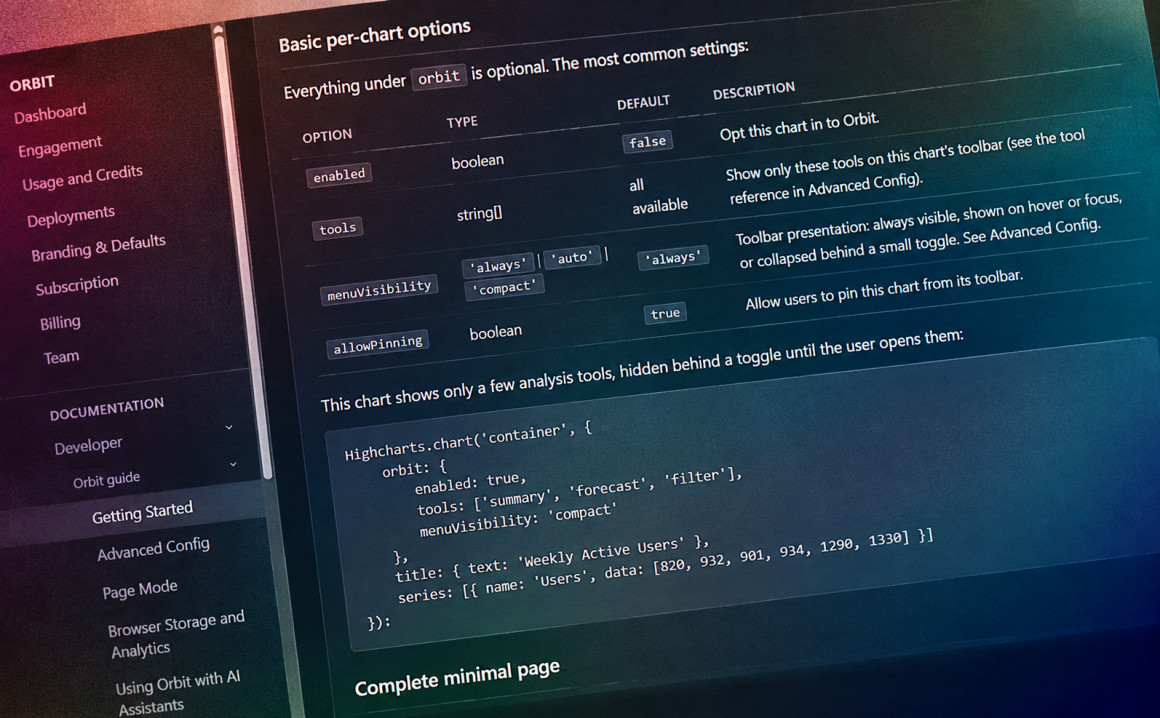
Highcharts Orbit adds an analysis toolbar to your Highcharts charts. From the toolbar, your users can view summary statistics, fit a trend line, forecast a series, spot anomalies, filter the data, draw annotations and export the result. The analysis runs in the browser, and your chart code stays the way it is.
This tutorial follows the Getting Started guide (requires Orbit account login) in the Orbit portal: load the module, enable Orbit on a chart and open the page. All you need is a single HTML page.
What you need
- An Orbit deployment key. Sign in to the Orbit portal, open Deployments and select a deployment. The Embed section shows a script tag with your key in it. The key starts with
orb_. - Highcharts. Orbit attaches to Highcharts but does not include it. Highcharts and Orbit are separate products with separate licenses.
Step 1: Load Highcharts and Orbit
Create an index.html file and add the scripts to the <head>. Replace YOUR_API_KEY with your deployment key:
<script src="https://code.highcharts.com/highcharts.js"></script>
<script src="https://code.highcharts.com/highcharts-more.js"></script>
<script src="https://code.highcharts.com/modules/exporting.js"></script>
<script src="https://code.highcharts.com/modules/annotations.js"></script>
<script src="https://code.highcharts.com/modules/accessibility.js"></script>
<script src="https://orbit.highcharts.com/module/YOUR_API_KEY/orbit.js"></script>
The order matters. Orbit hooks into Highcharts when it loads, so it always comes after Highcharts and every Highcharts module you use.
The modules each back part of the toolbar. The exporting module powers the Export menu and the annotations module powers the Annotate tools. highcharts-more adds the arearange series type, which Orbit uses for forecast confidence bands. The accessibility module makes the chart work with screen readers and keyboard navigation.
Orbit is not on code.highcharts.com or npm. Each deployment serves its own module from the Orbit host, with the key in the URL. Tool access, limits and sites live in the portal, and changes there apply on the next page load.
Step 2: Create the chart
Add a container to the <body>:
<div id="chart" style="height: 400px;"></div>
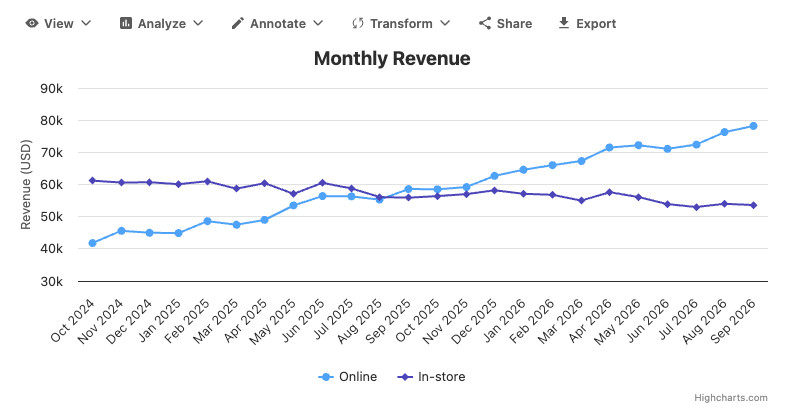
Then add the chart in a <script> tag below it. It is modeled on the Monthly Revenue example in the Getting Started guide, with two years of data for two sales channels so the analysis tools have something to work with.
Highcharts.chart('chart', {
  orbit: { enabled: true },

  title: { text: 'Monthly Revenue' },
  xAxis: {
    categories: [
      'Oct 2024', 'Nov 2024', 'Dec 2024', 'Jan 2025', 'Feb 2025', 'Mar 2025',
      'Apr 2025', 'May 2025', 'Jun 2025', 'Jul 2025', 'Aug 2025', 'Sep 2025',
      'Oct 2025', 'Nov 2025', 'Dec 2025', 'Jan 2026', 'Feb 2026', 'Mar 2026',
      'Apr 2026', 'May 2026', 'Jun 2026', 'Jul 2026', 'Aug 2026', 'Sep 2026'
    ]
  },
  yAxis: { title: { text: 'Revenue (USD)' } },
  series: [{
    name: 'Online',
    data: [
      41800, 45600, 45000, 44900, 48600, 47500, 49000, 53500,
      56400, 56300, 55300, 58600, 58500, 59200, 62700, 64600,
      66000, 67300, 71500, 72200, 71100, 72400, 76300, 78200
    ]
  }, {
    name: 'In-store',
    data: [
      61200, 60600, 60700, 60100, 61000, 58700, 60400, 57100,
      60500, 58800, 56100, 55900, 56400, 57000, 58200, 57100,
      56800, 55000, 57600, 56100, 53900, 53000, 54000, 53600
    ]
  }]
});
orbit: { enabled: true } is the only Orbit option you need. Everything else is regular Highcharts configuration.
Step 3: Open the page
Serve the page from a local web server, for example by running npx serve in the project folder, and open the URL it prints. Orbit loads only on sites listed on your deployment, so use a deployment set up for local testing (see “Add your site” below).
The chart renders with the Orbit toolbar above it. The tools are grouped into menus:
- View switches between the chart and other representations of the same data: a summary statistics table, a distribution histogram and KPI tiles. It also has a fullscreen mode.
- Analyze holds the statistics: correlations and contribution, trend lines and forecasts, anomaly detection and control limits.
- Annotate draws shapes, lines and callouts on the chart.
- Transform filters the data and computes derived series, such as a total or a ratio.
- Share creates a link that reapplies the user’s changes, and Export downloads the chart as an image or data.
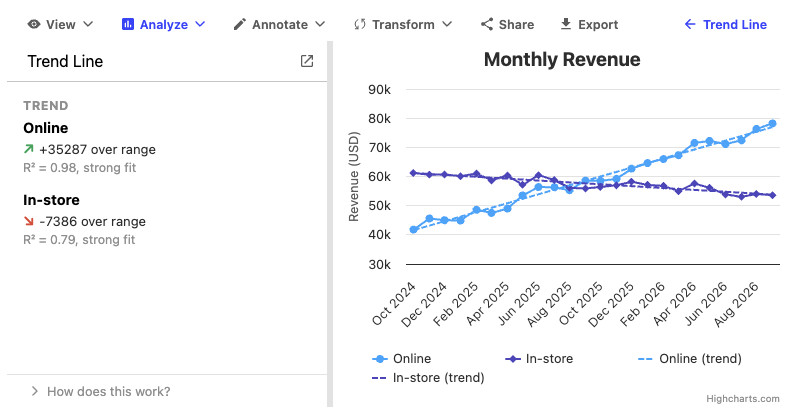
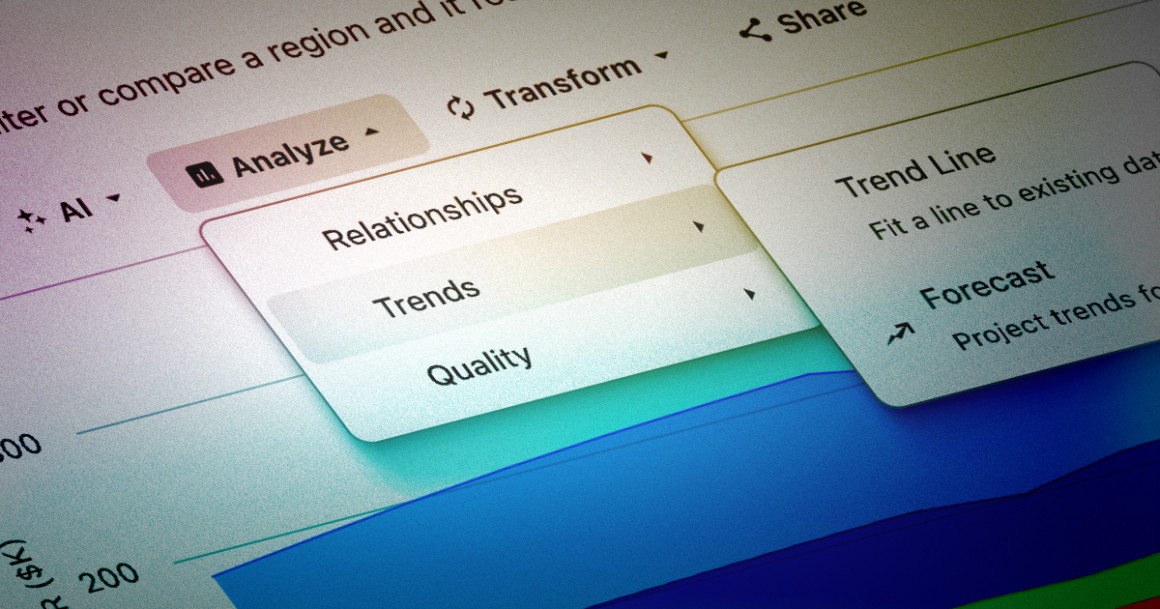
Try Analyze, then Trends, then Trend Line. Orbit fits a straight line to each series and draws it as a dashed line on the chart. The panel shows how much each trend rises or falls over the range, and R², which tells you how well the line fits the data (1 is a perfect fit). Here, online revenue grows by about 35,000 USD over the two years, and in-store revenue drops by about 7,000.
Add your site
The key sits in your page source, where anyone can read it. On its own it is not a secret. What protects it is the deployment’s Sites list in the portal. Orbit loads only on the sites listed there, and a deployment with no sites works nowhere.
Open your deployment in the portal and add each domain your pages run on under Sites, for example app.example.com. A site covers the domain and its www. version. Enter the bare domain. Scheme and port are ignored.
Local testing works a little differently. localhost, 127.0.0.1 and [::1] count as one free local site, on any port. A deployment is either local or public, never both, so create a separate deployment for local testing and use its key on your local pages.
If a key ends up somewhere you do not want it, an org admin can choose Rotate key on the deployment page. The old key stops working on the next request, and you paste the new script tag into your pages. The Getting Started guide covers sites, key rotation and rate limits in detail.
Using a bundler?
Orbit looks for window.Highcharts when it loads. If you install Highcharts from npm, expose it on window and load the Orbit script before you create your charts. The React guide shows the full pattern with the official @highcharts/react wrapper.
Make it your own
Now swap the example for one of your own charts. Add orbit: { enabled: true } to its configuration and leave the rest as it is. Formatters, click handlers and other functions you have set keep running on the chart Orbit renders.
By default a chart gets every tool your deployment includes that fits the chart. To show only the tools that make sense for your use case, list them in tools:
orbit: {
  enabled: true,
  tools: ['summary', 'trendline', 'forecast', 'export']
}
Set menuVisibility: 'compact' to collapse the toolbar behind a small button until the user opens it. The Advanced Config guide lists every tool and option.
Next steps
- Page Mode links several charts and grids on a page into one workspace, with page-wide filters and side-by-side comparison. It takes one call to
Highcharts.orbitPage(). - Using Orbit with AI Assistants covers llms.txt and the Claude skill, so your coding assistant writes correct Orbit code.
- The Orbit demos show Orbit on more chart types, grids and dashboards.
- Highcharts Orbit: One toolbar. A complete analytical workflow. walks through the tools in more depth.
One script and one option give your chart its own analysis toolbar. From here, you decide which tools your users see and how the charts on a page work together.







Leave a Reply