
Guest post by Jędrzej Ruta: Developer Highcharts Support Engineer.
How to Make Morningstar Data LLM-Friendly Without Hallucinating Charts
Ask an AI assistant for a chart of a fund’s sector exposure and you will usually get something that looks right. A tidy block of Highcharts configuration, plausible sector names, and percentages that add up to roughly 100. Paste it into your project and you quickly discover it only looked right. The numbers were never real, and half the options do not exist in the Highcharts API.
Those are two different failures, and they need two different fixes. The data has to come from somewhere authoritative, and the configuration has to be checked against the real schema. Model Context Protocol (MCP) servers give you both. Pair that with an agent skill that makes the assistant use them in the right order every time.
This article shows how to wire up Morningstar and Highcharts MCP servers, and how to stop the assistant from filling gaps with invention.
Two kinds of hallucination
Invented data. The model produces a number because a number belongs there. It has no access to Morningstar’s database, so a fund’s expense ratio becomes whatever looked typical in its training data.
Invented API. The model produces option names that sound like Highcharts but are not in it – a plausible-looking key on an axis, a formatting option on a series. This one is more insidious, since the config often runs, silently ignoring the keys it does not recognise.
A model with a search tool and no validator fixes the first and not the second. A model with a validator and no data source fixes the second and not the first. You want both.
The servers
Five MCP servers matter here, and they do genuinely different jobs:
| Server | Endpoint | What it is for | Access |
|---|---|---|---|
| Morningstar MCP | https://mcp.morningstar.com/mcp | Investment data, research, portfolio X-Ray | OAuth, licensed account |
| DWS Developer Assistant | https://dws.morningstar.com/discovery-assistant/mcp | Morningstar DWS API specs, for writing code against the APIs | Open |
| Highcharts Dev Assist | https://mcp.highcharts.ai/developers/mcp | Highcharts docs and runnable examples, chart choice, config validation | Open |
| Highcharts Render | https://mcp.highcharts.ai/export/mcp | Turning a finished configuration into a PNG | Open |
| Highcharts Chartchooser | https://chartchooser-mcp.highcharts.ai/mcp | Chart type, story, and production-ready HTML from a pasted dataset | Token, no login required |
Highcharts Render has a single tool, render_chart, with optional width, height, and scale. It is the cheapest way to see whether a chart actually looks like anything. One quirk to save you a confused minute: render_chart wants the config as an object, while validate_config takes it as a JSON string.
Note the access column. Morningstar’s data server needs a licensed Morningstar account. The DWS Developer Assistant, Highcharts Dev Assist, and Highcharts Render servers are open. Chartchooser uses a bearer token, but there is no login or account setup required.
Connecting them
In Claude Code, each server is one command:
claude mcp add highcharts --transport http https://mcp.highcharts.ai/developers/mcp
claude mcp add highcharts-render --transport http https://mcp.highcharts.ai/export/mcp
claude mcp add dws --transport http https://dws.morningstar.com/discovery-assistant/mcp
claude mcp add morningstar --transport http https://mcp.morningstar.com/mcp
claude mcp add chartchooser --transport http https://chartchooser-mcp.highcharts.ai/mcp
Check that they are connected correctly with claude mcp list, which pings each one and reports its health.
Connected means the server answered and its tools are available. Needs authentication is expected for Morningstar until you sign in: run /mcp, pick the server, and your browser opens for the OAuth flow – the client then stores the token and reuses it. Failed means the endpoint did not answer at all, which is usually the server being unreachable rather than anything wrong on your side, so check its status before hunting for a mistake in your config.
Add --scope user if you want a server available across all your projects rather than the current one.
What each server actually gives the model
Morningstar MCP exposes seven tools. The one that matters most for accuracy is morningstar-id-lookup-tool, which Morningstar describes as the server’s entity detection layer: it maps tickers and security names to Morningstar investment IDs, and data point names to data point IDs. Everything else builds on it.
The assistant does not guess which fund you meant – it resolves the name to an identifier first, then fetches against that identifier. The remaining tools cover data (morningstar-data-tool, 1,300+ data points as of July 2026), holdings (morningstar-fund-holdings-tool), screening (morningstar-screener-tool), X-Ray analysis (morningstar-portfolio-analysis-tool), analyst research, and editorial articles.
DWS Developer Assistant exposes eight, aimed at writing code rather than fetching values. They fall into three groups: discover_resources, get_swagger_chunk, and fetch_resource find and retrieve the OpenAPI specs; search_datapoints, search_datapoints_by_package, and get_datapoint locate and describe individual data points; search_documentation and get_api_documentation cover the written documentation. Worth being clear about what this one is for – it gets the API contract right when you are coding against DWS, but the numbers themselves still need DWS credentials.
Highcharts Dev Assist exposes five: search_docs and search_snippets for documentation and runnable examples, recommend_chart and get_chart_type_info for choosing a chart type, and validate_config, which is the one that checks the model’s output.
validate_config takes a Highcharts configuration and checks it against the official Highcharts schema – the same tree.json that powers the API reference. Anything that is not in the schema comes back named, one line per option. That is the mechanism that kills invented API: a key the model made up gets called out before the config reaches your codebase.
How it reports matters, though, and is worth knowing before you wire it into a workflow. Unknown options arrive as warnings rather than errors, and the overall status can still read as valid – so “did it pass?” is the wrong question to ask the tool, and “did it report anything?” is the right one. And the warnings are leads, not verdicts: schema paths are nested more deeply than a flat config suggests, so a valid option occasionally shows up on the list. Check each one against the docs rather than deleting it on sight.
Two things worth knowing about the docs search. Its corpus includes the Highcharts connectors for Morningstar DWS, so a query about InvestmentsConnector and its AssetAllocationBreakdown converter returns the actual connector documentation. And every passage comes back with its source URL attached:
--- Result 1 (source: https://www.highcharts.com/docs/morningstar/dws/asset-allocation-breakdown) ---That citation is what lets you check an answer instead of taking it on faith – the difference between a claim and a claim you can follow up.
A chart, end to end
Here is the flow for “chart the sector exposure of QQQ against the S&P 500”, with each step naming the tool that does the work.
- Resolve the security.
morningstar-id-lookup-toolmapsQQQto a Morningstar investment ID. - Get the data.
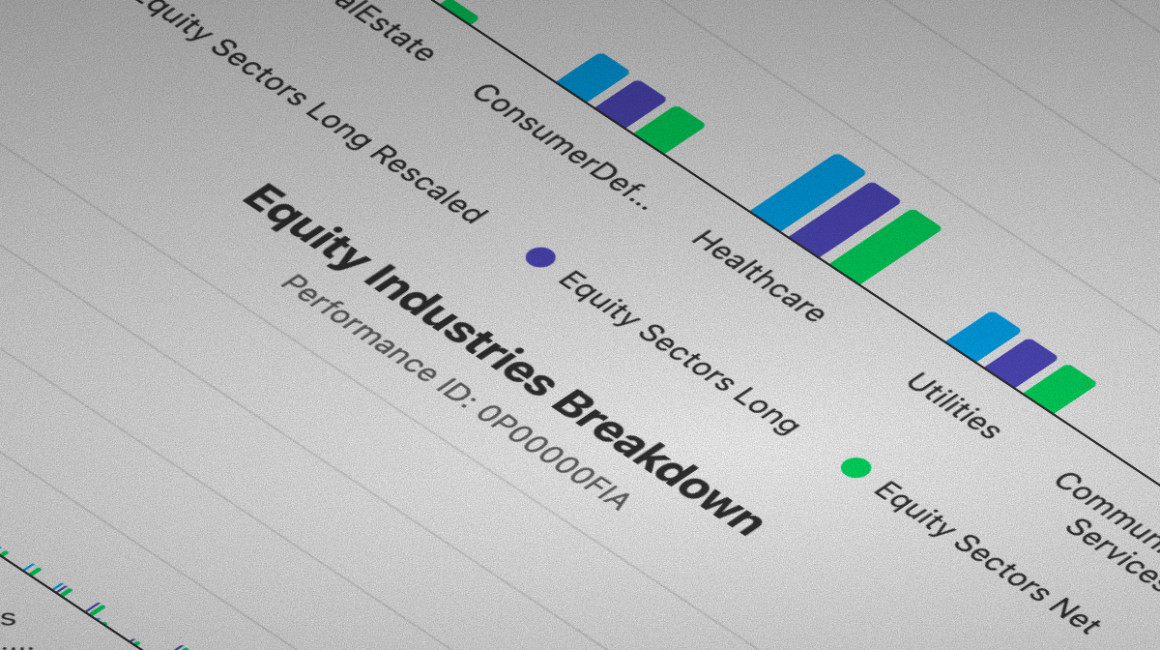
morningstar-portfolio-analysis-toolwith the Equity Sectors analysis returns exposure across Morningstar’s super-sectors – Cyclical, Defensive, Sensitive – and their underlying sectors, benchmarked against the S&P 500. - Choose the shape.
recommend_chartwith objectivecomparisonsuggests a suitable type;get_chart_type_infoconfirms the data format it expects. - Write the config.
search_docssettles the option names instead of the model recalling them. - Validate.
validate_configon the finished object, then read its warnings and fix what they name. - Look at it.
render_chartproduces a PNG so you see the result rather than trusting the JSON.
Six steps, and the model only writes in one of them. The rest is lookup, validation, and rendering.
Making it repeatable with a skill
Nothing so far obliges the assistant to work in that order. Connecting the servers makes the tools available; it does not make them mandatory. Ask the same question twice and you may get a validated config once and a config written from memory the next time, because the model is free to decide which steps are worth the trouble. An agent skill removes that discretion by writing the sequence down.
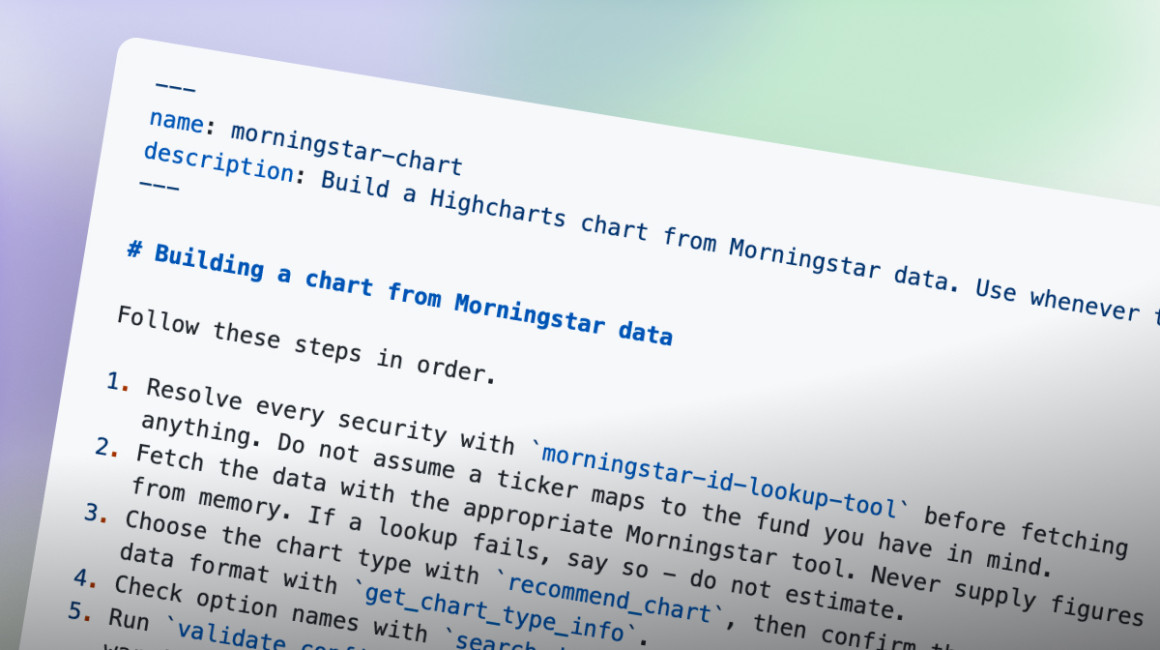
Create .claude/skills/morningstar-chart/SKILL.md:
---
name: morningstar-chart
description: Build a Highcharts chart from Morningstar data. Use whenever the user asks to chart or visualise a fund, stock, or portfolio metric.
---

# Building a chart from Morningstar data

Follow these steps in order.

1. Resolve every security with `morningstar-id-lookup-tool` before fetching
   anything. Do not assume a ticker maps to the fund you have in mind.
2. Fetch the data with the appropriate Morningstar tool. Never supply figures
   from memory. If a lookup fails, say so - do not estimate.
3. Choose the chart type with `recommend_chart`, then confirm the expected
   data format with `get_chart_type_info`.
4. Check option names with `search_docs` before writing the configuration.
5. Run `validate_config`. Do not stop at the pass/fail status - read the
   warning list. For each unknown option, confirm against `search_docs`
   whether it is genuinely wrong, then fix it. Never present a configuration
   whose warnings you have not accounted for.
6. Optionally call `render_chart` to show a preview.

State which securities and dates the data covers. If a tool documents a
limitation that affects the answer - a fixed benchmark, a date cutoff - say so.
Less than 30 lines, and it converts every “the model can validate” into “the model must validate”. Step 5 is the one that earns its place, and note how it is worded: because unknown options come back as warnings on a config that still reports as valid, the rule has to be about reading the warnings rather than trusting the status.
When you would rather be asked than write
Everything above assumes you are writing the configuration yourself, with the servers checking your work. Chartchooser inverts that: upload your data and get back the right chart type, a data-driven story, accessibility, and production-ready HTML.
How it works:
- Upload your data. Paste in your dataset and let Chartchooser take it from there.
- Click through the setup. Set your goal, audience, and style with simple button choices, no prompts to write, nothing to phrase just right. Five questions total, split across two rounds (capped at three per round).
- Get the right chart. See the chart type that actually fits your data, plus the story it’s telling, not just whatever’s familiar.
- Walk away with working code. Get back production-ready HTML you can drop straight onto your page, not a mockup you still have to build.
The workflow in this article is for building a specific chart into an application, where you want every option checked against the official schema. Chartchooser is for going from a dataset to a working chart quickly; it acts as a knowledgeable dataviz partner that analyzes your needs and renders a chart for you.
Two differences from the servers above:
- Where it runs. Works with claude.ai, Claude Desktop, and Claude Code. Connect it via
claude mcp add chartchooser --transport http https://chartchooser-mcp.highcharts.ai/mcp, or through Settings → Integrations with the same URL on claude.ai/Desktop. - Authentication. Every request needs a bearer token, where the Highcharts servers in the table above accept requests with none, but this adds no setup on your end. The OAuth handshake completes automatically the moment you add the connector: no login screen, no account, nothing to approve. It’s protocol-level plumbing, not a real sign-in.
Why this reduces hallucination rather than just moving it
Three concrete mechanisms, not one general promise.
Identifiers instead of names. Resolving QQQ to an investment ID means the data request is unambiguous. Fund names are famously similar; identifiers are not.
A schema, not a memory. validate_config compares your configuration against the published Highcharts schema. It is not asking a model whether an option looks plausible.
Documented limits. Morningstar’s tools state their own boundaries: portfolio analysis benchmarking is fixed to the S&P 500 and cannot be customised as of April 2026; article content only goes back to 2022; historical availability varies by data point; analyst research covers the latest reports, not history. An assistant that reads those limits can tell you a request is out of scope. A model working from memory will happily benchmark against something else and invent the comparison.
Remember that, at the end of the day, the assistant can still misread correct data. Nothing here stops a confident summary of numbers it fetched properly but interpreted badly. Always verify the output yourself, especially when dealing with financial data.
Where to go next
The quickest way to feel the difference is to try the same question twice – once with the servers connected and once without – and compare what comes back.
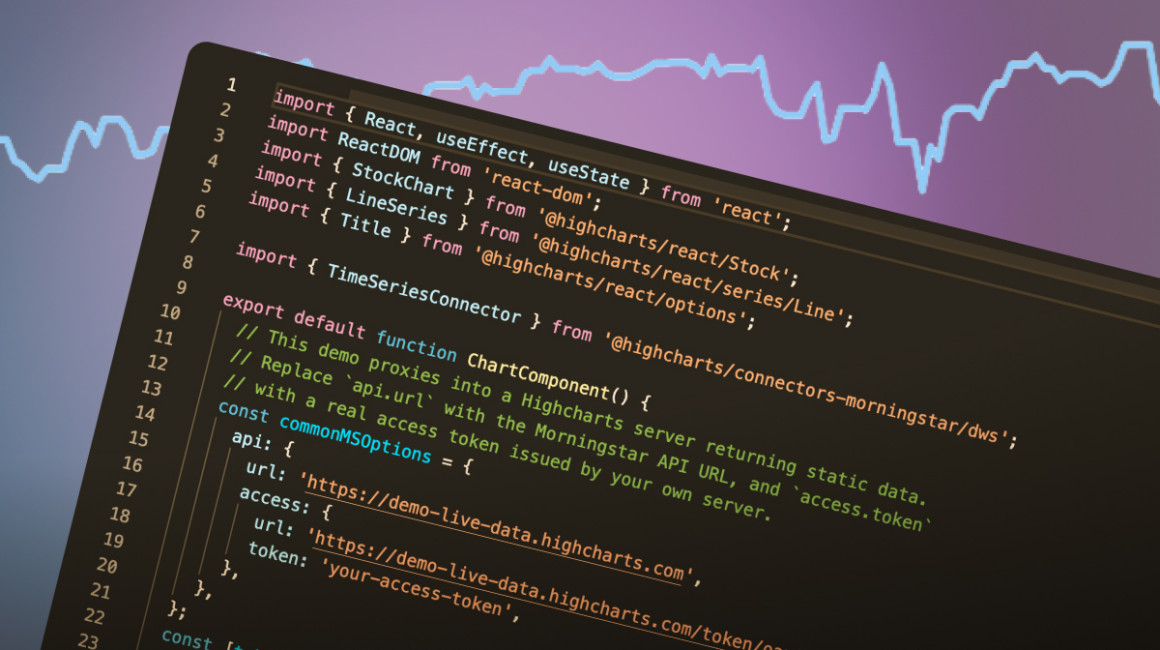
For the Highcharts connectors that fetch Morningstar data directly into a chart, without an assistant in the loop, see the Morningstar connectors documentation. Morningstar’s own tools reference lists every tool’s capabilities and limitations, which is worth reading before you rely on one.
Using the Morningstar data tools requires a licensed Morningstar account. The Highcharts MCP servers are open – connect one and ask it to validate the last chart config you wrote.






Leave a Reply