

It’s official. Highcharts for Flutter is out of beta and ready for production use.
Flutter has become the go-to framework for building mobile apps that run on Android and iOS. And now, you can bring Highcharts into your Flutter projects using our official package without jumping through hoops or relying on community-maintained wrappers.
Since launching the beta, we’ve tightened up the integration, fixed bugs, and improved performance based on feedback from our community. (Check out the changelog for the nitty-gritty.)
If you tried the beta: welcome back. If you’re new to Highcharts for Flutter: let’s get you up and running.
Installation
To add highcharts_flutter to your project, use the following Flutter command:
flutter pub add highcharts_flutter
This will add a line like this to your package’s pubspec.yaml (and run an implicit flutter pub get):
dependencies:
  highcharts_flutter: ^1.0.0
Then import it into your Dart code:
import 'package:highcharts_flutter/highcharts.dart';
Now all Highcharts options are available for you to use in your project. Check out the highcharts_flutter page on pub.dev for the full list of options. (There are a lot.)
Example: Hello, Highcharts
Here’s a simple example that shows how to use Highcharts for Flutter to build a line chart in your app:
import 'package:flutter/material.dart';
import 'package:highcharts_flutter/highcharts.dart';

void main() {
  runApp(const MyApp());
}

class MyApp extends StatelessWidget {
  const MyApp({super.key});

  // This widget is the root of your application.
  @override
  Widget build(BuildContext context) {
    return MaterialApp(
      title: 'Hello, Highcharts!',
      theme: ThemeData(
        colorScheme: ColorScheme.fromSeed(seedColor: Colors.deepPurple),
        useMaterial3: true,
      ),
      home: Scaffold(
        appBar: AppBar(
          backgroundColor: Theme.of(context).colorScheme.inversePrimary,
          title: Text(widget.title),
        ),
        body: ListView(
          children: [
            // Here is a Highcharts widget added to the ListView
            HighchartsChart(
              HighchartsOptions(
                title: HighchartsTitleOptions(
                  text: 'Hello, Flutter!'
                ),
                series: [
                  HighchartsLineSeries(
                    name: 'My First Series',
                    data: [[0, 5], [0.5, 55.5], [1, 10]],
                    options: HighchartsLineSeriesOptions(
                      color: '#C60',
                    ),
                  ),
                ],
                plotOptions: HighchartsPlotOptions(
                  series: HighchartsSeriesOptions(
                    point: HighchartsSeriesPointOptions(
                      events: HighchartsSeriesPointEventsOptions(
                        click: HighchartsCallback((args) => {
                          final point = args[0];
                          debugPrint('Point value: ${point['x']}, ${point['y']}');
                        }),
                      ),
                    ),
                  ),
                ),
              ),
            ),
          ],
        ),
      ),
    );
  }
}
All chart options can be updated dynamically using HighchartsChart.refresh(). This makes it easier to build interactive, responsive charts that behave like native parts of your Flutter app.
Want More Charts?
Flutter for Highcharts supports all major Highcharts products:
- Core for standard chart types
- Stock for financial charts
- Maps for data linked to geography
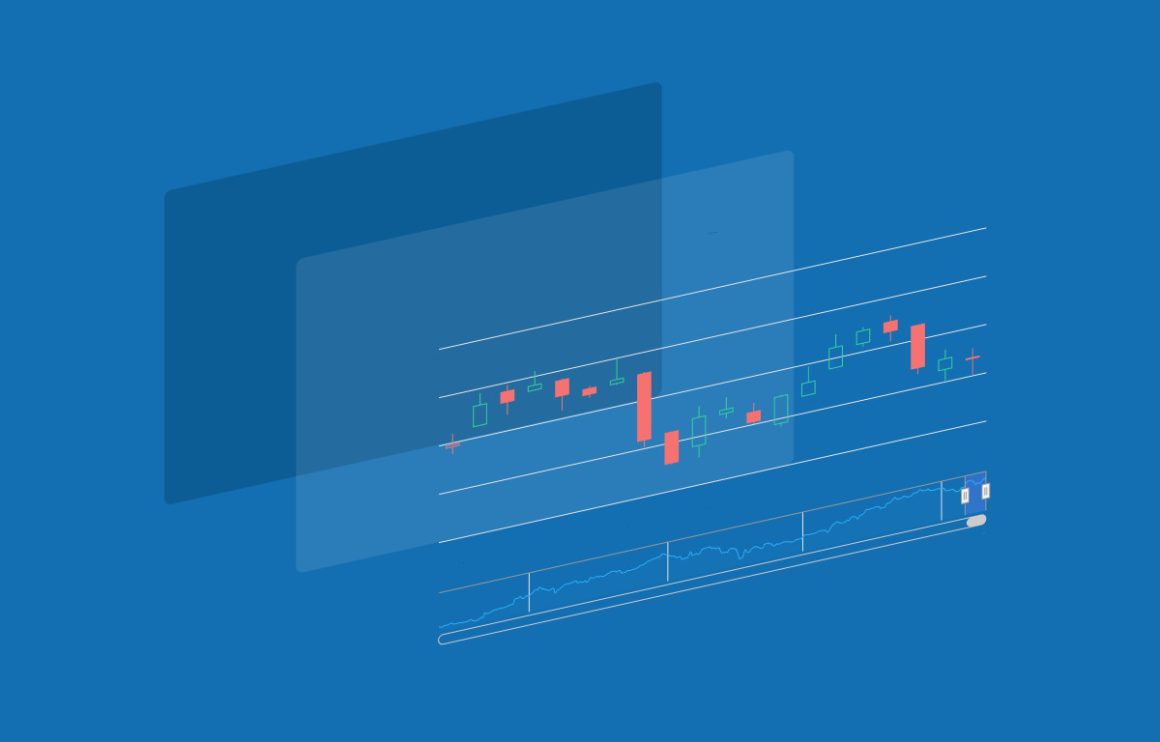
- Gantt for project resources and timelines
To explore product-specific demos, take a look at the examples/ folder in our GitHub repo.
Heads up: some of the demos must be initialized by creating a Flutter project inside the specific demo folder using flutter create. Once you’ve initialized your Flutter project, you can run the demo using flutter run.
Ready to Explore?
For more information about Highcharts for Flutter, visit our dedicated Flutter integration page. And if you run into questions or spot something odd, open an issue on GitHub or give us a shout.



Leave a Reply